
Receiptify User Guide – How to Use Receiptify for Spotify, Last.fm & Apple Music
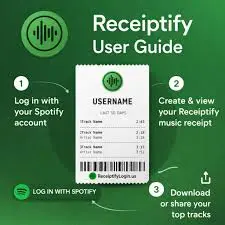
Receiptify turns your Spotify or Last.fm listening history into a receipt-style image showing your top tracks, artists, and genres. To use Receiptify, visit receiptify.herokuapp.com, log in with Spotify or Last.fm, choose a timeframe and metric, then download or share the generated receipt as a PNG.
It is a free, open-source web application created by developer Michelle Liu. It uses the Spotify API (Application Programming Interface) and Last.fm API to pull your personal listening data and format it as a store receipt. No app installation is required — Receiptify runs entirely in any web browser. An iOS app called “Stats for Spotify: Receiptify” is available on the App Store, but the web version at receiptify.herokuapp.com is free with no paywalls.
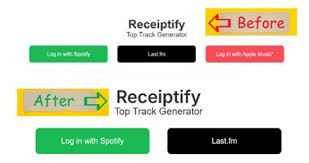
It currently supports 2 platforms: Spotify and Last.fm. Apple Music support was removed in 2023 after Apple restricted its API to only “Heavy Rotation” data, which does not support time-based filtering.
What Is Receiptify?
Receiptify is a third-party music stats tool that formats your streaming data as a grocery-style receipt. The receipt lists your most-played tracks ranked from most listened to least, along with the total number of plays or listening time in the receipt’s “total” row — similar to a purchase total on a store receipt.
Receiptify displays 5 types of data for Spotify users:
- Top Tracks: Your most-played songs ranked by play count
- Top Artists: Your most-streamed artists ranked by total listening time
- Top Genres: The music genres you listen to most, pulled from Spotify’s genre tagging system
- Stats: A summary view of your overall listening activity and patterns
- Search Albums: Search for a specific album and generate a receipt from its tracklist
How to Use Receiptify for Spotify
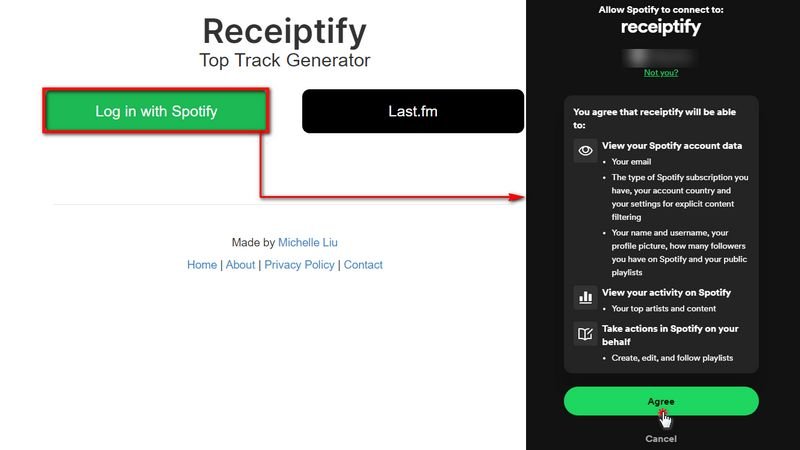
To use Receiptify for Spotify, follow these 6 steps:
- Open receiptify.herokuapp.com. Use any web browser on desktop or mobile. No account creation is required on Receiptify.
- Click “Log in with Spotify.” Receiptify redirects to Spotify’s official login page. Enter Spotify account credentials on Spotify’s page — not on Receiptify. Receiptify uses OAuth 2.0 authentication, so Receiptify never sees the password.
- Click “Agree” to authorize access. Receiptify requests read-only permission to the top tracks and artists data. Receiptify cannot modify playlists, play music, or access payment details.
- Choose a metric. Select from Top Tracks, Top Artists, Top Genres, Stats, or Search Albums using the options displayed on the right side of the page.
- Select a timeframe. Choose from 3 options: Last Month, Last 6 Months, or All Time. The receipt updates instantly when the timeframe changes.
- Choose Top 10 or Top 50. Select whether the receipt displays the top 10 or top 50 tracks or artists. Top 10 produces a shorter, cleaner receipt. Top 50 generates a longer, more detailed list.
The receipt generates automatically after login. Any change to the metric, timeframe, or count updates the receipt in real time.
How to Use Receiptify for Last.fm
To use Receiptify for Last.fm, follow these 4 steps:
- Open receiptify.herokuapp.com. The homepage displays 2 active login options: Spotify and Last.fm.
- Click “Log in with Last.fm.” Enter the Last.fm username and password on the Last.fm authorization page.
- Authorize access. Click Allow to grant Receiptify read access to the Last.fm listening history.
- Customize and generate the receipt. Select the metric, timeframe, and count. The Last.fm version of Receiptify also shows play count data per track — a feature Spotify’s API does not provide.
Last.fm advantage: Last.fm tracks scrobbles (individual song plays) across Spotify, Apple Music, YouTube, Tidal, Deezer, and SoundCloud. Receiptify for Last.fm therefore shows play counts from multiple streaming services combined — not just one.

Does Receiptify Work with Apple Music?
No. Receiptify removed Apple Music support in 2023. Apple’s Music API only provides “Heavy Rotation” data — a list of frequently accessed content with no time-based filtering. Receiptify requires time-period filtering (Last Month, Last 6 Months, All Time) to generate receipts, which Apple’s API does not support.
There are 3 alternatives for Apple Music users who want receipt-style listening stats:
- Apple Music Replay: Apple’s official annual summary at music.apple.com/replay. Shows top songs, artists, and albums for the year. No receipt format, but reliable and native.
- Last.fm with Receiptify: Connect Apple Music to a Last.fm account using the Last.fm app or the Last.fm Web Scrobbler browser extension. Once Apple Music scrobbles to Last.fm, use Receiptify’s Last.fm login to generate receipts.
- Stats.fm: A dedicated stats platform that supports Apple Music directly and provides top tracks, listening time, and genre breakdowns.
How to Customize a Receiptify Receipt
Receiptify provides 4 customization options after logging in:
- Metric: Switch between Top Tracks, Top Artists, Top Genres, Stats, or Search Albums. Each selection updates the receipt content instantly.
- Timeframe: Choose Last Month, Last 6 Months, or All Time. “Last Month” shows the past 4 weeks of listening. “All Time” shows data from the start of the account.
- Count: Select Top 10 or Top 50 results. Top 50 is better for detailed analysis. Top 10 is better for social media sharing due to the compact size.
- Build Custom Receipt: Manually enter any songs to create a custom receipt not based on listening history. This option is useful for creating themed receipts or sharing a manually curated track list.
How to Download a Receiptify Receipt
To download the Receiptify receipt, click the blue “Download Image” button at the bottom left of the receipt. The receipt saves as a PNG file to the device’s default Downloads folder.
Mobile download note: The Download Image button may not work correctly on some mobile browsers. Take a screenshot of the receipt as an alternative. The receipt fits within a standard smartphone screen when the Top 10 option is selected.
The downloaded PNG is a high-resolution image ready for posting on Instagram, Twitter, TikTok, Facebook, or Snapchat. The receipt includes the Receiptify branding at the bottom — no manual watermark removal is needed.
How to Share a Receiptify Receipt on Social Media?
To share a Receiptify receipt, download the PNG image, open the social media app, upload the image as a photo post, add a caption, and publish. Receiptify receipts perform well on Instagram Stories, Twitter/X posts, TikTok captions, and Reddit music communities.
The 4 best social platforms for sharing Receiptify receipts:
- Instagram Stories: Crop the receipt to a 9:16 vertical ratio for a full-screen Story. Use the “Add Yours” sticker to invite followers to share their own receipts.
- Twitter/X: Post the receipt as an image tweet. Add hashtags like #Receiptify, #SpotifyReceipt, or the top artist’s name to increase visibility.
- TikTok: Use the receipt as a background or overlay in a video. Receiptify went viral on TikTok after pop star Ariana Grande shared a receipt in 2020.
- Reddit: Share in subreddits like r/spotify, r/lastfm, or genre-specific communities to compare listening habits with other users.
How to Save a Receiptify Receipt as a Spotify Playlist
Receiptify includes a “Save as Playlist” button below the receipt. Clicking this button saves the displayed top tracks directly to the Spotify account as a new playlist. The playlist title includes the timeframe — for example, “Top Tracks – Last Month.”
This feature is only available for Top Tracks receipts linked to a Spotify account. Last.fm receipts and Top Artists or Top Genres receipts do not include the Save as Playlist option.
Receiptify Not Working – 6 Fixes
Receiptify fails to load or generate receipts for 5 common reasons: high server traffic, blocked pop-ups, poor internet connection, an expired or inactive streaming account, or browser cache issues. Apply these 6 fixes in order:
- Refresh the page. Receiptify occasionally experiences traffic spikes. Refreshing the page 2–3 times often resolves a failed receipt generation without any other action.
- Enable pop-ups in the browser. Receiptify opens the Spotify or Last.fm authorization in a pop-up window. Pop-up blockers prevent this from opening. In Chrome: Settings > Privacy & Security > Site Settings > Pop-ups and Redirects > Allow. In Safari: Preferences > Websites > Pop-up Windows > Allow.
- Clear browser cache and cookies. Outdated cached data causes login failures and blank receipt pages. Clear cache in browser settings, then reload receiptify.herokuapp.com and log in again.
- Switch to a different browser. Receiptify works on all major browsers — Chrome, Firefox, Safari, and Edge. Switching browsers resolves compatibility issues caused by outdated browser versions or extensions.
- Check internet connection stability. Receiptify requires a stable connection to pull data from the Spotify or Last.fm API. Switch from mobile data to Wi-Fi, or vice versa, if the receipt fails to generate.
- Try on a smartphone instead of a desktop. Some browser extensions on desktop PCs block Receiptify’s API requests. Opening Receiptify on a phone browser without extensions often resolves the issue.
Is Receiptify Safe?
Yes, Receiptify is safe. Receiptify uses OAuth 2.0 to authenticate with Spotify and Last.fm. OAuth 2.0 means the password is entered only on Spotify’s or Last.fm’s own login page — Receiptify never receives or stores the password. Receiptify requests read-only access to top tracks and artists. Receiptify cannot modify playlists, play music, access payment information, or collect personal data beyond listening stats.
Receiptify is open-source, meaning the source code is publicly available for review on GitHub. Security researchers and developers can inspect exactly what data the tool accesses. Receiptify does not store personal information or browsing activity outside of the listening data used to generate the receipt.
Security tip: Always access Receiptify through the official URL receiptify.herokuapp.com. Clone sites with similar names exist and may not be safe. The official GitHub repository is github.com/bchiang7/receiptify.
Receiptify vs Spotify Wrapped – Key Differences
Receiptify and Spotify Wrapped both display Spotify listening stats, but they serve different purposes across 4 key areas:
- Availability: Receiptify is available year-round. Spotify Wrapped is released once per year, in early December.
- Timeframes: Receiptify shows data for the Last Month, Last 6 Months, or All Time. Spotify Wrapped only shows the full calendar year from January to October.
- Format: Receiptify generates a static PNG receipt image. Spotify Wrapped creates an animated, story-format slideshow inside the Spotify app.
- Platform support: Receiptify supports Spotify and Last.fm. Spotify Wrapped is Spotify-only and covers only activity since the user joined Spotify.
Receiptify Alternatives for Spotify Listening Stats
There are 4 strong alternatives to Receiptify for users who want different visual formats for their Spotify data:
- Spotify Pie Chart (spotifypie.com): Generates a pie chart of the top genres. Also includes a ReceiptiPie feature that combines genre data with a Receiptify-style receipt layout.
- Stats.fm: Provides detailed play counts per track, total listening hours, and monthly listening reports. Compatible with both Spotify and Apple Music.
- Instafest: Converts top artists into a music festival poster format. Supports Spotify and Apple Music.
- Spotify Bubble Chart: Clusters top artists into interactive floating bubbles sized by listening frequency. A visual alternative to the receipt list format.
Final Verdict
Receiptify is the fastest way to turn Spotify or Last.fm listening history into a shareable image. The tool takes under 2 minutes to generate a receipt, works on any browser without installation, and requires no account creation. Spotify and Last.fm users get the full feature set for free at receiptify.herokuapp.com.
Apple Music users cannot use Receiptify directly — connect Apple Music to Last.fm first, then use Receiptify’s Last.fm login to generate receipts with play count data. For annual stats without extra steps, Apple Music Replay at music.apple.com/replay remains the most direct option.
Frequently Asked Questions